
Silk Mobile
Table of Contents (Homepage)
- Overview
- Setting Up
- Getting Started
- How To
- Connecting Devices And Emulators
- Preparing Applications For Testing
- Managing Applications
- Recording Tests
- Working With Test Commands
- Adding Commands To Your Scripts
- Object Commands
- Click
- ClickCoordinate
- ClickIn
- ClickOffset
- Drag
- ElementGetProperty
- ElementGetTableRowsCount
- ElementListPick
- ElementListSelect
- ElementListVisible
- ElementScrollToTableRow
- ElementSendText
- ElementSetProperty
- ElementSwipe
- ElementSwipeWhileNotFound
- GetAllValues
- GetElementCount
- GetElementCountIn
- GetTextIn
- IsElementBlank
- IsElementFound
- IsFoundIn
- LongClick
- RunNativeAPICall
- SendWhileNotFound
- VerifyElementFound
- VerifyElementNotFound
- VerifyIn
- WaitForElement
- WaitForElementToVanish
- GetCoordinateColor
- DragDrop
- Application Commands
- Device Commands
- Web (Hybrid) Specific Commands
- Utilities Commands
- Monitoring Commands
- Configuration Commands
- ExtractLanguageFiles
- SetDefaultClickDownTime
- SetDefaultTimeOut
- SetDefaultWebView
- SetDragStartDelay
- SetInKeyDelay
- SetKeyToKeyDelay
- SetLanguage
- SetLanguagePropertiesFile
- SetShowImageInReport
- SetShowPassImageInReport
- SetShowReport
- SetSpeed
- SetThrowExceptionOnFail
- SetWebAutoScroll
- StartStepsGroup
- StopStepsGroup
- TextFilter
- Miscellaneous Commands
- Controlling Element Identification Rules
- Editing Test Objects
- Executing Test Scripts
- Report Of Executed Test
- Working From Code Environment
- Continuous Integration
- Layout Verification Tests
- Use Device Vitals Monitors
- Troubleshooting
- Terminology
Image Recording
Note: This recording option is not recommended as using images recognition is not recommended identification method.
To record a script in the Image Recording mode:
Step 1: Get ready for the recording
Step 2: In the Recording dialog box now displayed, set the following parameters:
-
Device to be recorded.
-
Recording Type: select Image and text Mode.




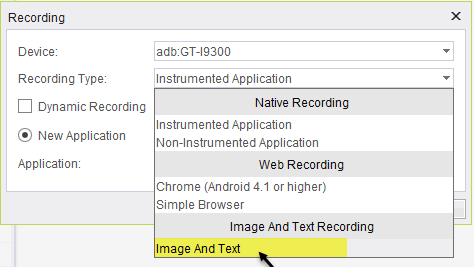
Step 3: Perform the actions to be recorded on the reflection of the device.
Some recommendations regarding the recording:
-
Click the center of the image/icon/link.
-
Record slowly
-
Step 4: During recording, all elements which actions were performed on will be extracted to the object Repository.
Step 5: Once recording is completed, click the stop record button.
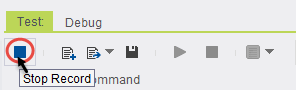
You will see a progress bar indicating that the record data is being analyzed, and the test script will then appear in the Script area.
Note: The script you recorded can later on be edited. (For instructions on how to edit, see the "Edit Test Commands" & "Edit Test Objects" section in the guide).
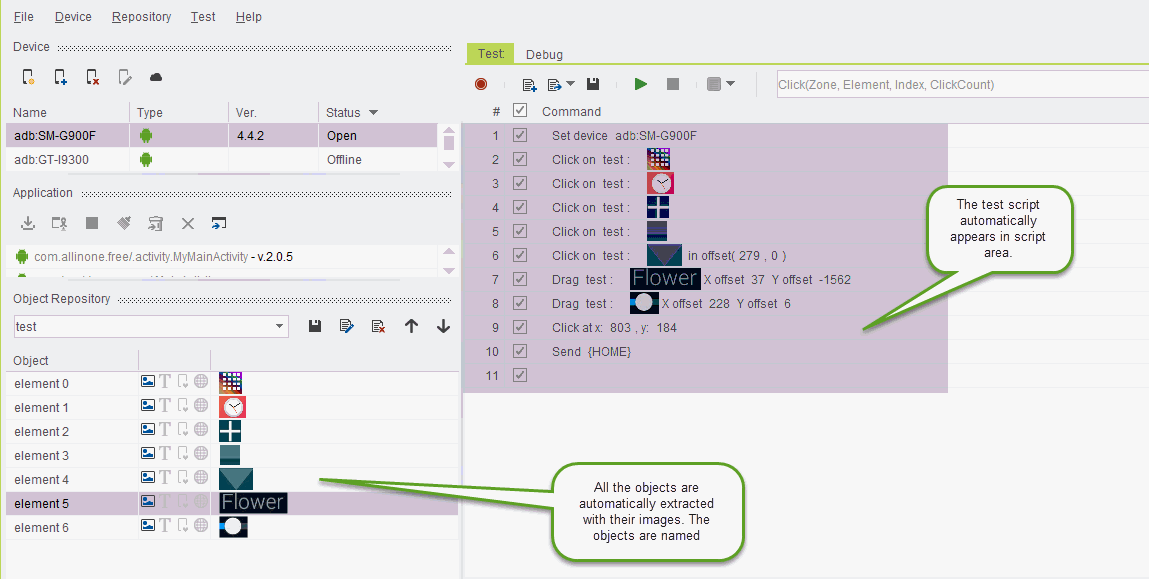
Step 6: Click the Play button to run the script.